Minerva · Staff Manual
Staff & Payroll
Staff lifecycle: directory, attendance (manual + biometric), leave workflow with balances, payroll, ratings, and complaints.
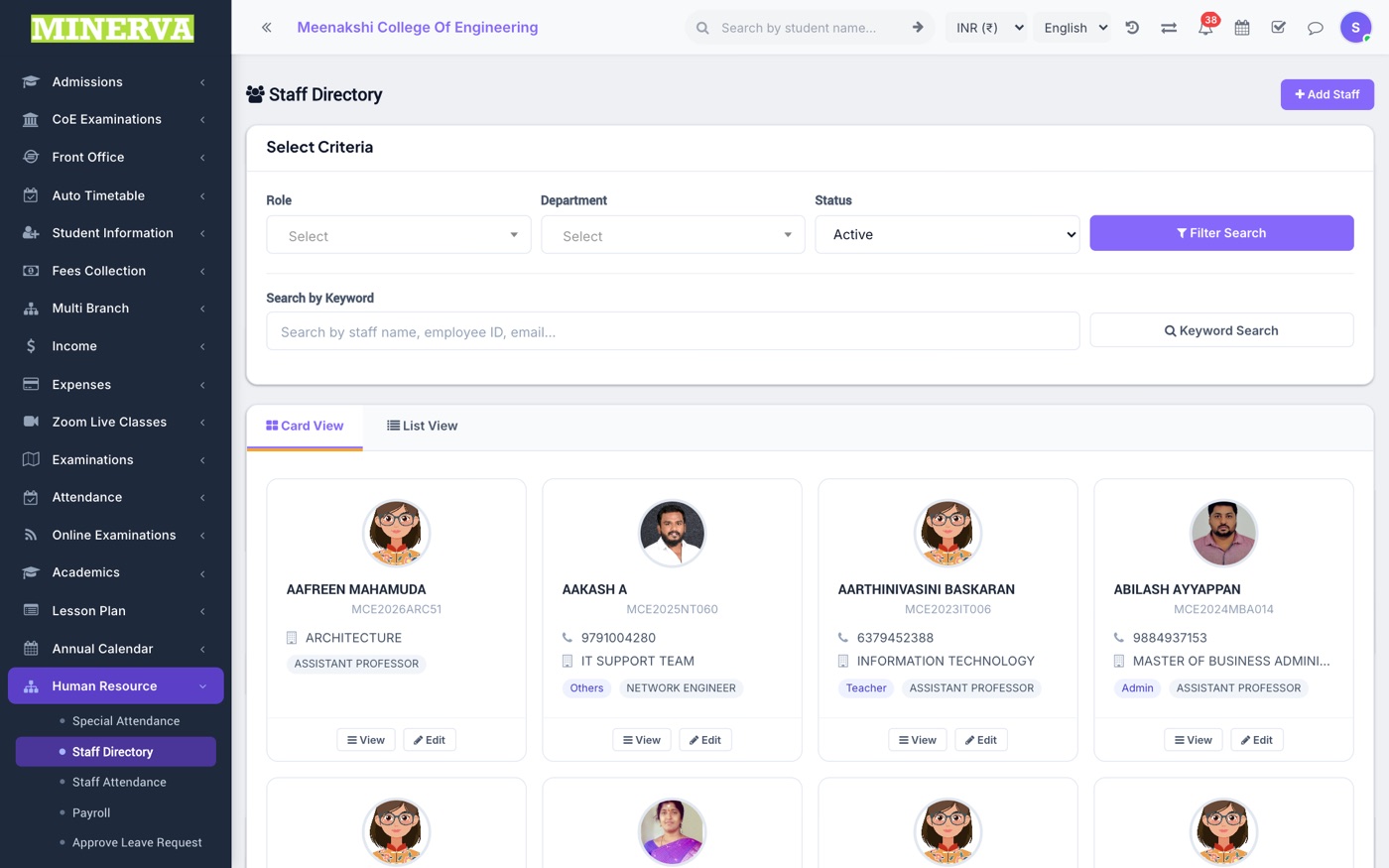
Staff Directory
All staff with role, department, designation.
- Press + Add Staff for the full joining form (personal, role & designation, payroll, bank, documents).
- Open a staff profile to edit, upload documents, set timeline events, or disable on exit.
Staff Attendance & Biometric
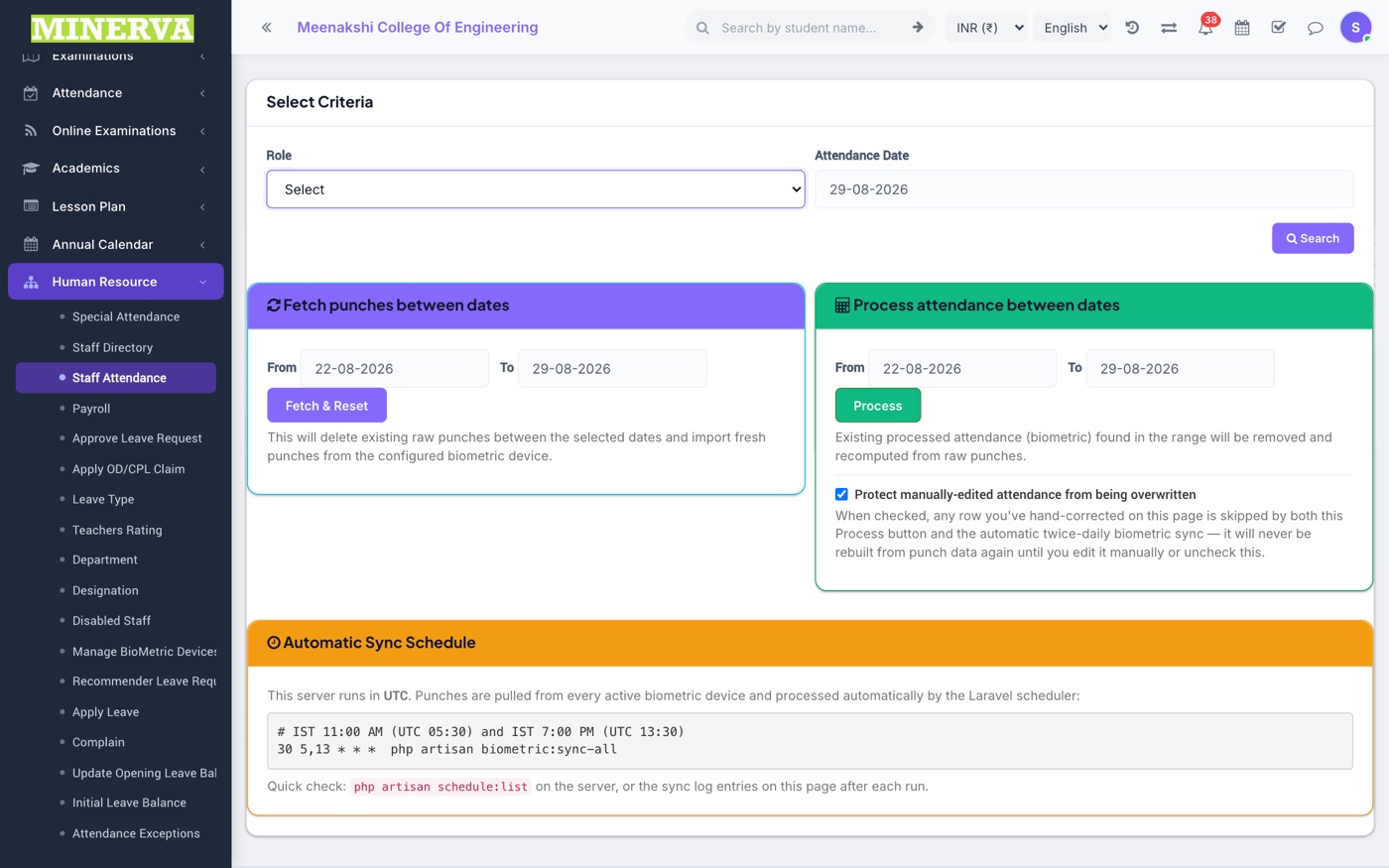
Mark staff attendance by date, or let the biometric integration fill it automatically; Special Attendance handles half-day/OD categories; Attendance Exceptions lists mismatches to fix.
Leave Workflow
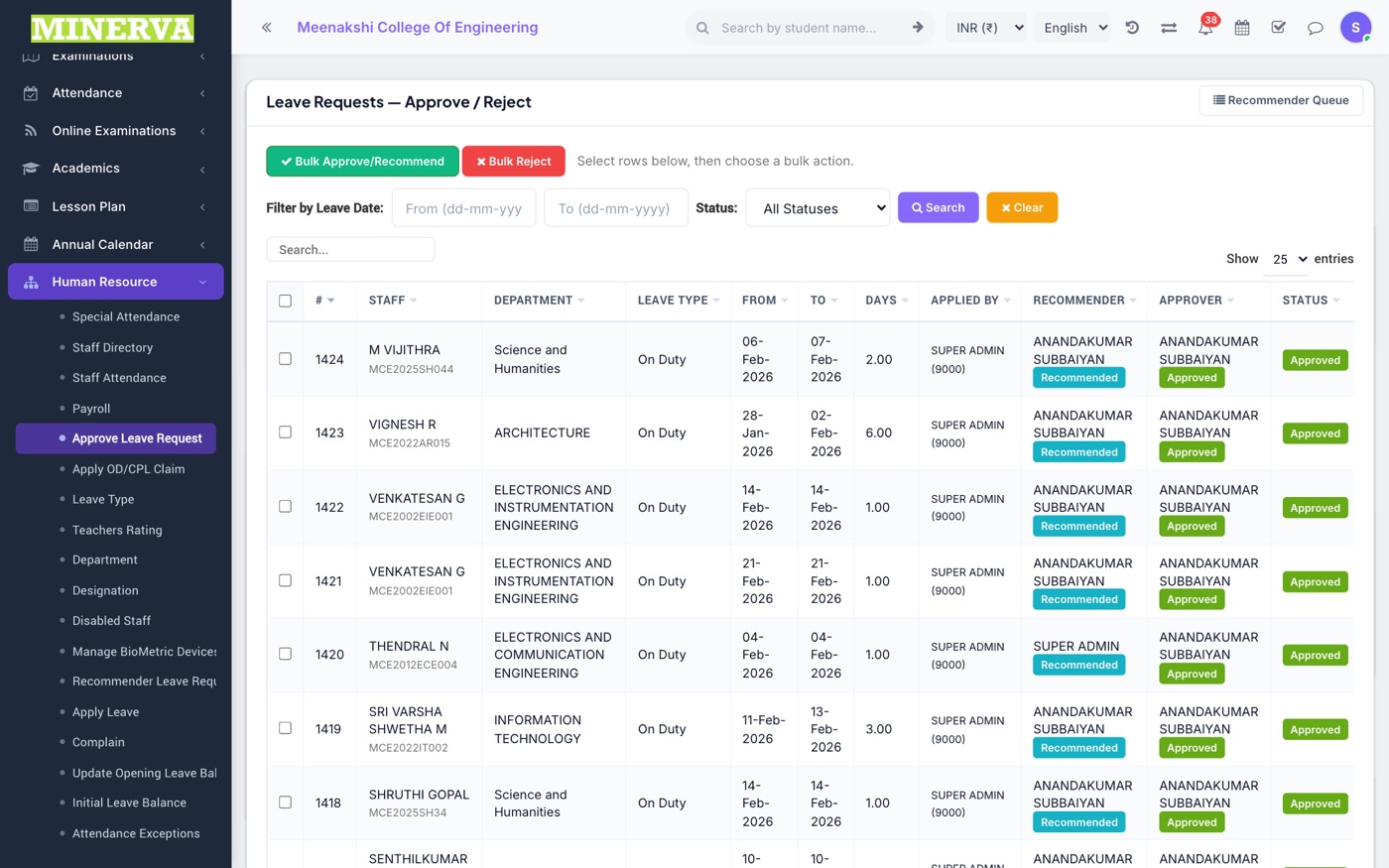
Apply Leave (self or on behalf), recommender step, and final approval — driven by Leave Types and per-staff balances.
- Staff apply from Apply Leave (or the app) choosing a leave type and dates.
- Recommenders see requests under Recommender Leave Requests; approvers finalise under Approve Leave Request.
- Balances start from Initial Leave Balance and can be adjusted under Update Leave Balance.
Monthly Leave Credit (CL)
Every month Minerva adds each staff member's monthly leave — usually 1 day of Casual Leave (CL) — to their balance automatically. Nobody has to press anything. The leave type and the number of days are shown under Staff & Payroll → Monthly Leave Increment.
Who gets the credit
- Every active staff member who joined on or before the 1st of the month gets that month's credit.
- Someone who joins on the 2nd or later gets their first credit the next month.
- A staff member with no Date of Joining on their profile is treated as existing staff and gets the credit every month.
- Staff marked inactive (disabled) do not get the credit.
| Staff joined | Gets CL for |
|---|---|
| Before 1 October, or on 1 October | October, and every month after |
| 2 October – 31 October | From November |
| 16 September, but added to Minerva only on 6 October | September is not credited (joined after 1 September); October is credited the morning after the record is added |
When it happens
- The credit is added at 2:00 AM (India time) on the 1st of every month.
- Every morning after that, Minerva checks again for qualifying staff who were added to Minerva later in the month (for example, a staff record created on the 10th for someone who joined on the 1st) and credits them too.
- Each staff member gets the credit only once a month — it is never added twice.
Changing balances in Update Leave Balance
- You can open Update Leave Balance, pick a month and press Save All before or after the 1st — the staff member still gets that month's credit.
- Once the month's credit has been added, Minerva never changes a balance you set. If you set someone's CL to 0 (for example, staff who are not entitled to CL), it stays at 0.
- The Credit column shows the month's credit; Adj is your own adjustment; = Available is what the staff member can use (it also offsets loss of pay in payroll).
- To bring someone's balance to 0, do it after the 1st, once the Credit column shows the month's credit, and set Adj to minus (Opening + Credit). For example, Opening 2 and Credit 1 → Adj −3 → Available 0.
Running it by hand
- Run Increment Now on the Monthly Leave Increment page is only needed if the automatic run did not happen (for example, the feature was switched on mid-month).
- For a month that has already been credited, Run Increment Now — even with Force re-run ticked — only adds the credit for staff who have no balance for that month yet. It never gives anyone a second credit and never overwrites a balance you set.
- In the annual reset month shown on that page, the yearly leave count starts again from zero instead of a credit being added.
Tip: Fill in every staff member's Date of Joining on their profile. It decides whether a new joiner gets CL for the month they joined.
Payroll
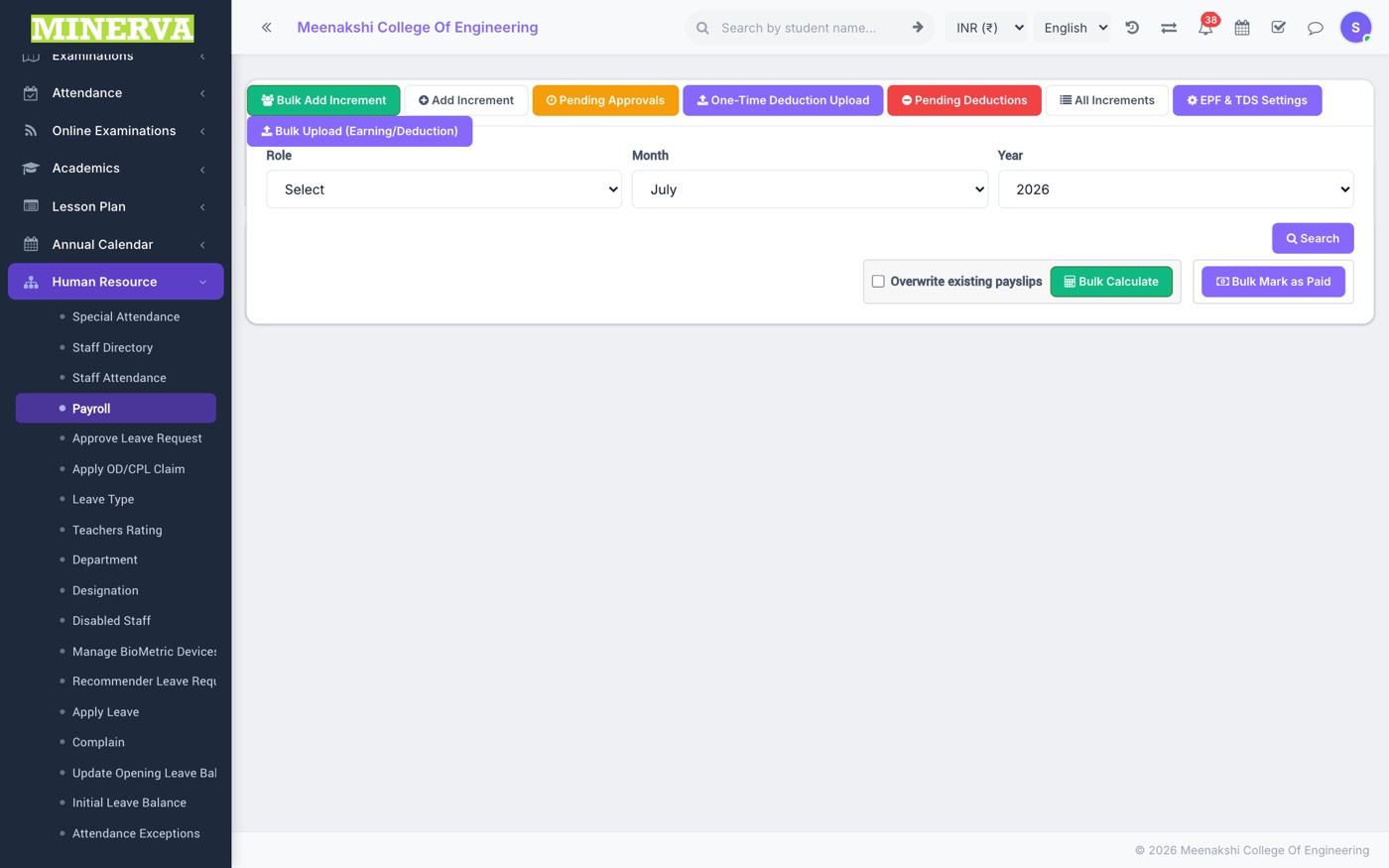
Monthly salary processing: earnings/deductions, EPF/ESI/TDS, loss-of-pay from attendance, increments, and payslip generation.
- Generate the month, review each staff's calculated payslip, adjust one-time entries, then approve and pay.
- Payslips become downloadable by staff; registers feed the HR reports.
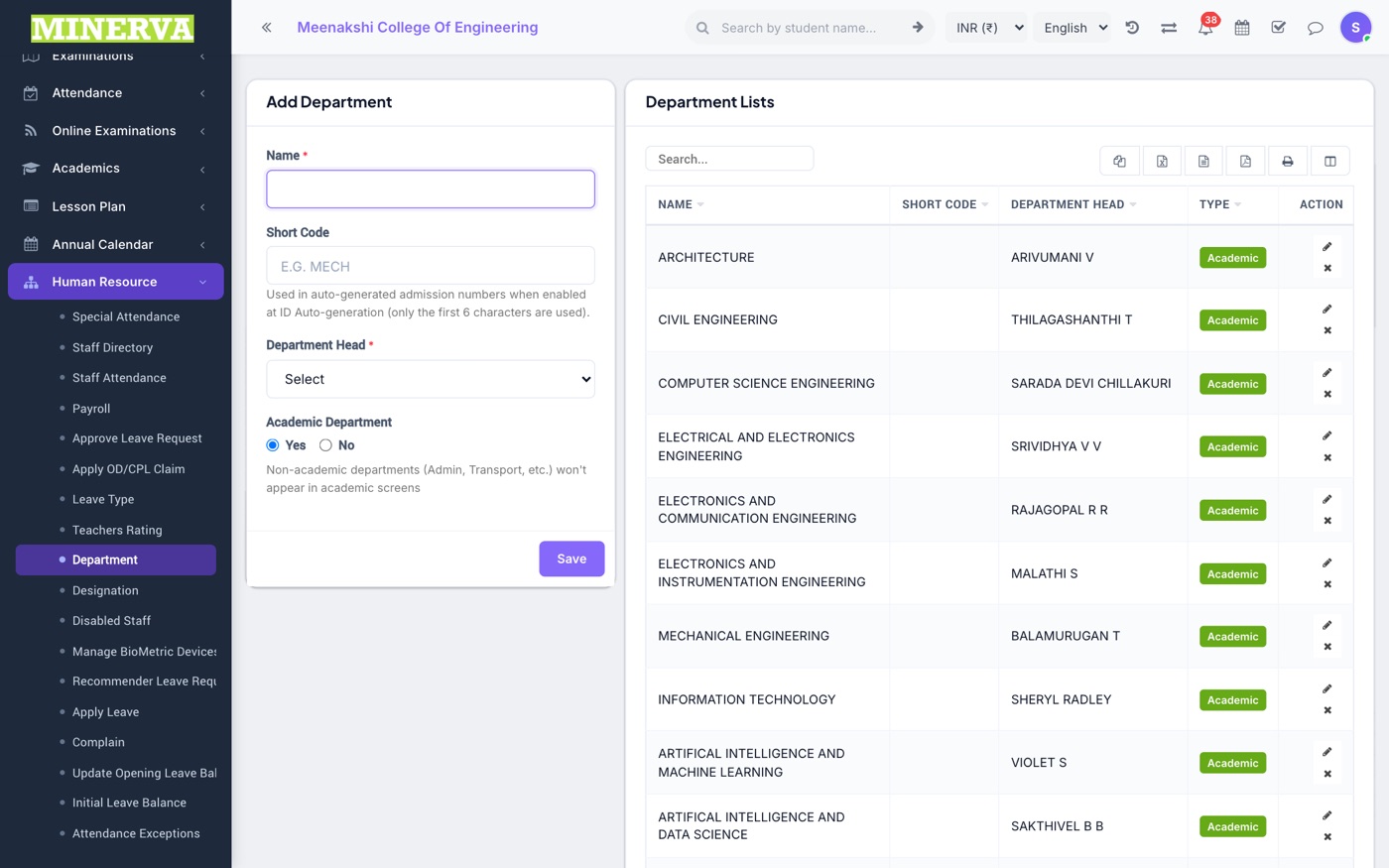
Department & Designation
Organisation masters — add/edit/delete.
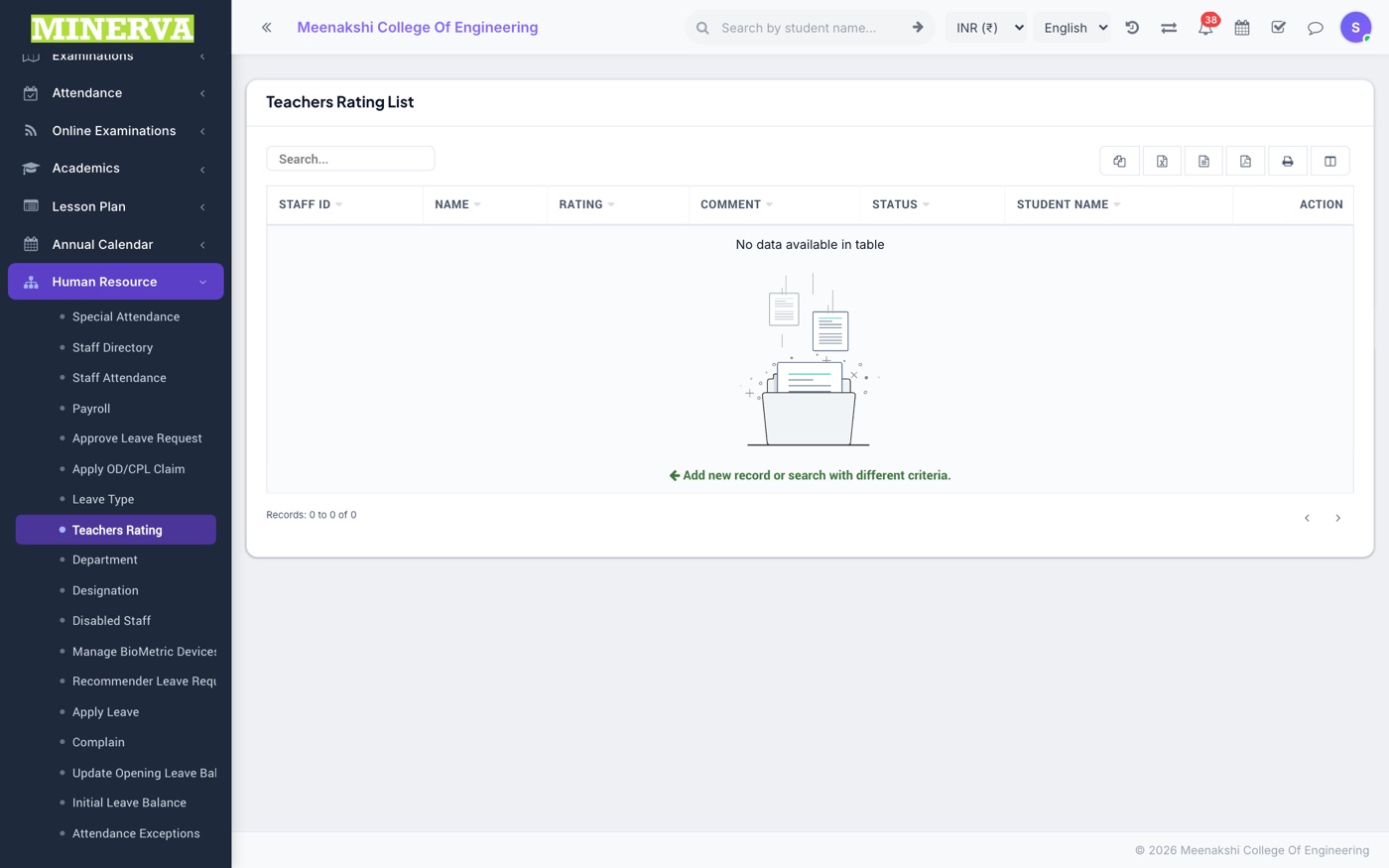
Teacher Ratings & Complaints
Student-submitted teacher ratings for review, and the staff complaint register.